






Multitasking has become part of everyday work, whether you are managing emails, browsing research, editing documents, or attending online meetings. Windows 11 introduces a feature called Snap Layouts that quietly transforms how you handle multiple apps at once. If you have ever struggled with switching between windows or arranging them manually, this feature can save both time and effort.
Snap Layouts is not just a visual upgrade. It is a practical tool designed to help you stay focused, reduce clutter, and work faster without feeling overwhelmed. Once you understand how it works, it becomes difficult to go back to the old way of dragging and resizing windows.
This guide walks you through everything you need to know about using Windows 11 Snap Layouts effectively, even if you are completely new to the feature.
What Are Snap Layouts in Windows 11
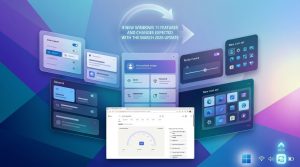
Snap Layouts is a built in multitasking feature that allows you to organize multiple open windows into predefined layouts on your screen. Instead of manually resizing and aligning apps, you can choose a layout and place each window into a specific section.
For example, you can split your screen into two equal halves, or divide it into three or four sections depending on your needs. Each section holds a different app, making it easy to view and interact with several tasks at once.
What makes Snap Layouts stand out is how simple and quick it is. With just a few clicks or keyboard shortcuts, your workspace becomes organized without any hassle.
Why Snap Layouts Matter for Everyday Use
Many users underestimate how much time they lose switching between tabs and windows. Over a full workday, those small interruptions add up.
Snap Layouts helps by keeping everything visible and accessible at the same time. You do not need to minimize or search for apps constantly.
Here are a few real life benefits:
You can compare documents side by side without resizing them manually
You can attend a meeting while taking notes in another window
You can track data while writing reports without switching screens
You can watch tutorials while practicing in another app
It creates a smoother workflow that feels natural after a short time.
How to Open Snap Layouts in Windows 11
Getting started with Snap Layouts is very simple. There are multiple ways to access it depending on your preference.
Method 1: Using the Maximize Button
Hover your mouse over the maximize button in the top right corner of any window. A small layout menu will appear showing different grid options.
Click on the layout you want and then select where you want the current window to be placed.
Method 2: Keyboard Shortcut
Press Windows key + Z on your keyboard. This instantly opens the Snap Layouts menu.
You can then choose a layout and assign windows quickly without using the mouse much.
Method 3: Dragging Windows
Drag a window toward the top of the screen or to the sides. Windows 11 will suggest layout positions automatically.
This method feels familiar if you have used snap features in older Windows versions.
Understanding Different Snap Layout Options
Windows 11 offers several layout choices depending on your screen size and resolution. Not all layouts appear on smaller screens, but most modern displays support multiple options.
Here are the common layouts you will see:
Two column layout splits the screen evenly between two apps
Three column layout divides the screen into three vertical sections
Four grid layout creates four equal parts for multitasking
Asymmetrical layouts give more space to one main app and smaller sections for others
Choosing the right layout depends on your work. For example, if you are writing and researching, a two column layout works well. If you are managing multiple tools, a grid layout is more useful.
Step by Step Guide to Using Snap Layouts
Let us walk through a simple example to understand how it works in practice.
First open all the apps you want to use. For example, a browser, a document editor, and a messaging app.
Hover over the maximize button of one app and select a layout. Choose where this app should go.
Next, Windows will show thumbnails of your other open apps. Click on one to place it in another section.
Repeat this until all sections are filled.
Now you have a fully organized screen where each app stays in its place.
This setup remains even if you switch tasks, making it easier to return to your work without rearranging everything again.
What Are Snap Groups and Why They Help
Snap Groups is another useful feature connected to Snap Layouts. It remembers the group of apps you snapped together.
When you hover over an app in the taskbar, you will see the grouped layout. You can reopen all apps in their snapped positions with a single click.
This is especially helpful if you work on repeated tasks. For example, if you always use a browser, spreadsheet, and notes together, Snap Groups lets you restore that setup instantly.
It saves time and reduces frustration.
Tips to Use Snap Layouts More Efficiently
Once you get comfortable with Snap Layouts, a few simple habits can make it even more powerful.
Use keyboard shortcuts whenever possible. It speeds up the process significantly
Choose layouts based on your task instead of sticking to one setup
Close unnecessary apps to avoid clutter in Snap suggestions
Use larger screens or external monitors for better layout options
Combine Snap Layouts with virtual desktops for advanced multitasking
Small changes like these can make your workflow smoother and more organized.
Snap Layouts for Different Use Cases
Snap Layouts is flexible and adapts to different types of users. Here are a few examples.
For Students
Students can keep lecture notes on one side and research material on the other. This reduces distractions and improves focus during study sessions.
For Professionals
Office workers can manage emails, documents, and communication tools in one view. It reduces the need to constantly switch between apps.
For Content Creators
Writers, designers, and video editors can use multiple tools together without losing track of their workspace.
For Casual Users
Even for everyday tasks like shopping, watching videos, or chatting, Snap Layouts keeps everything neatly arranged.
Common Problems and How to Fix Them
Some users may face small issues when using Snap Layouts. Here are a few quick fixes.
If Snap Layouts is not showing, check if it is enabled in system settings under multitasking
If layouts do not appear on hover, update Windows 12 Iso File to the latest version
If windows do not snap properly, ensure your display scaling is set correctly
If keyboard shortcuts are not working, check for conflicting software
Most issues are easy to resolve and do not require technical knowledge.
How Snap Layouts Improves Productivity Over Time
At first, Snap Layouts might feel like just another feature. But over time, it changes how you interact with your computer.
You spend less time organizing windows and more time focusing on actual work. Your screen feels cleaner and easier to navigate.
The biggest benefit is mental clarity. When everything is in place, your mind does not need to keep track of hidden windows or lost tabs.
It creates a sense of control over your digital workspace.
Comparing Snap Layouts with Older Windows Features
Windows 10 had basic snap features, but they were limited. You could snap windows to the sides, but complex layouts required manual effort.
Windows 11 improves this with predefined layouts, better visuals, and Snap Groups.
The experience feels more modern and user friendly. It removes the guesswork and makes multitasking accessible for everyone.
Is Snap Layouts Worth Using
If you regularly use more than one app at a time, the answer is yes.
It is not just about saving time. It is about creating a workflow that feels natural and efficient.
Even if you start with simple layouts, you will notice the difference within a few days.
Final Thoughts
Windows 11 Snap Layouts is one of those features that looks simple but delivers real value in daily use. It helps you stay organized, reduces distractions, and makes multitasking feel effortless.
You do not need any special skills to use it. Just a few clicks and your entire workspace becomes structured and easy to manage.
If you have not tried it yet, start with a basic layout and build from there. Over time, you will find your own way of arranging apps that fits your work style perfectly.