









Windows 10 has been one of the most widely used operating systems for years, but even today, many users still deal with random errors, sudden crashes, or slow performance. If your computer freezes during important work or throws unexpected error messages, it can be frustrating and even stressful.
The good news is that most Windows 10 issues are not as complicated as they seem. In many cases, you do not need advanced technical knowledge or expensive tools to fix them. With the right approach, you can identify the problem and get your system running smoothly again.
This guide walks you through the most common Windows 10 errors and crashes, along with practical solutions that actually work. Whether you are dealing with a blue screen, system freeze, or software crash, you will find clear steps to fix the issue.
Why Windows 10 Errors and Crashes Happen
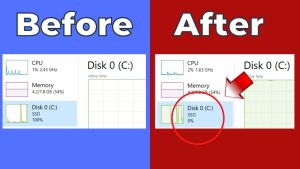
Before jumping into solutions, it helps to understand why these problems occur in the first place. Most Windows errors are caused by a few common factors.
Outdated drivers are one of the biggest reasons behind crashes. When hardware drivers are not updated, they can conflict with system processes and lead to instability.
Corrupted system files are another major cause. These files can become damaged due to improper shutdowns, malware, or software conflicts.
Low system resources can also trigger crashes. If your RAM or storage is almost full, your system may struggle to perform basic tasks.
Malware or unwanted programs can interfere with system performance and cause unexpected behavior.
Understanding these causes makes it easier to apply the right fix instead of guessing.
Quick Fixes You Should Try First
Sometimes, the simplest solutions work best. Before trying advanced fixes, start with these quick steps.
Restart your computer. It may sound basic, but a restart clears temporary glitches and resets system processes.
Check for Windows updates. Microsoft regularly releases patches that fix bugs and improve stability. Go to Settings, then Update and Security, and install any pending updates.
Close unnecessary programs. Too many apps running in the background can slow down your system and cause crashes.
Free up disk space. Delete temporary files or unused applications to create more room for system operations.
These quick fixes can solve many common issues without further effort.
How to Fix Blue Screen Errors
The blue screen, often called the Blue Screen of Death, is one of the most common Windows 10 problems. It usually appears when the system encounters a critical error.
Start by noting the error code displayed on the screen. This code gives a clue about the cause of the problem.
Restart your PC in Safe Mode. This allows Windows to run with minimal drivers and helps isolate the issue.
Update your drivers, especially graphics and chipset drivers. You can do this through Device Manager or the official website of your hardware manufacturer.
Run the Windows Memory Diagnostic tool to check for RAM issues. Faulty memory can often cause blue screen errors.
If the problem started recently, use System Restore to roll back your system to a previous working state.
Fixing System Freezes and Unresponsive Apps
If your computer becomes unresponsive or freezes frequently, it is often related to resource usage or software conflicts.
Open Task Manager and check which programs are using the most CPU or memory. If a specific app is causing the issue, consider uninstalling or updating it.
Disable startup programs that you do not need. Too many startup apps can slow down your system from the moment it boots.
You can also run the System File Checker tool. Open Command Prompt as administrator and type:
sfc /scannow
This tool scans and repairs corrupted system files automatically.
Resolving Windows Update Errors
Windows updates are important, but sometimes they fail or get stuck.
If you face update errors, start by restarting the Windows Update service.
Open Services, find Windows Update, and restart it.
You can also run the built in Windows Troubleshooter. Go to Settings, then Update and Security, and select Troubleshoot.
If updates still fail, clear the SoftwareDistribution folder. This folder stores temporary update files that can sometimes become corrupted.
Fixing Slow Performance and Lag
A slow computer is one of the most common complaints among Windows 10 users.
Start by disabling visual effects. Go to System settings, then Advanced system settings, and adjust performance options.
Upgrade your hardware if possible. Adding more RAM or switching to an SSD can dramatically improve performance.
Run Disk Cleanup to remove temporary files and system clutter.
You should also scan your system for malware using Windows Security or a trusted antivirus program.
Dealing with Driver Issues
Drivers play a critical role in how your system interacts with hardware.
If you experience crashes after installing new hardware, it is likely a driver issue.
Open Device Manager and look for any devices with warning icons. Update or reinstall those drivers.
If a new driver causes problems, you can roll it back to a previous version.
Keeping drivers updated ensures better compatibility and stability.
How to Fix Random Restart Problems
If your PC restarts unexpectedly, it could be due to hardware issues, overheating, or system settings.
Check your power settings and disable automatic restart on system failure.
Make sure your system is not overheating. Clean dust from fans and ensure proper ventilation.
Run a virus scan to rule out malware causing the issue.
Using Advanced Tools for Troubleshooting
Windows 10 includes several advanced tools that can help diagnose and fix issues.
Event Viewer allows you to see detailed logs of system errors. This can help identify the root cause of recurring problems.
The Reliability Monitor provides a timeline of system events and failures. It is useful for spotting patterns in crashes.
Command line tools like DISM can repair system images. Run this command in Command Prompt as administrator:
DISM /Online /Cleanup Image /RestoreHealth
This can fix deeper system issues that SFC alone cannot handle.
When to Reset or Reinstall Windows 10
If none of the solutions work, resetting or reinstalling Windows may be the best option.
Windows 10 allows you to reset your system while keeping your files. This removes problematic apps and settings.
A clean installation is more thorough and can eliminate persistent issues, but it requires backing up your data first.
This step should be considered as a last resort, but it is often very effective.
Tips to Prevent Future Errors
Fixing errors is important, but preventing them is even better.
Keep your system updated with the latest patches and drivers.
Avoid installing unknown or untrusted software.
Regularly clean your system and remove unnecessary files.
Use reliable antivirus protection to keep malware away.
Back up your data frequently to avoid loss during unexpected crashes.
Final Thoughts
Windows 12 Iso Download errors and crashes can feel overwhelming, especially when they happen repeatedly. But in most cases, the solution is simpler than it looks. By following a structured approach and using built in tools, you can fix most issues without needing professional help.
Start with basic troubleshooting, then move to more advanced methods if needed. Over time, you will become more confident in handling these problems on your own.
A stable and smooth system is not just about fixing errors when they appear. It is also about maintaining your PC regularly and staying aware of potential issues. With the right habits and knowledge, you can keep your Windows 10 system running efficiently for years.