






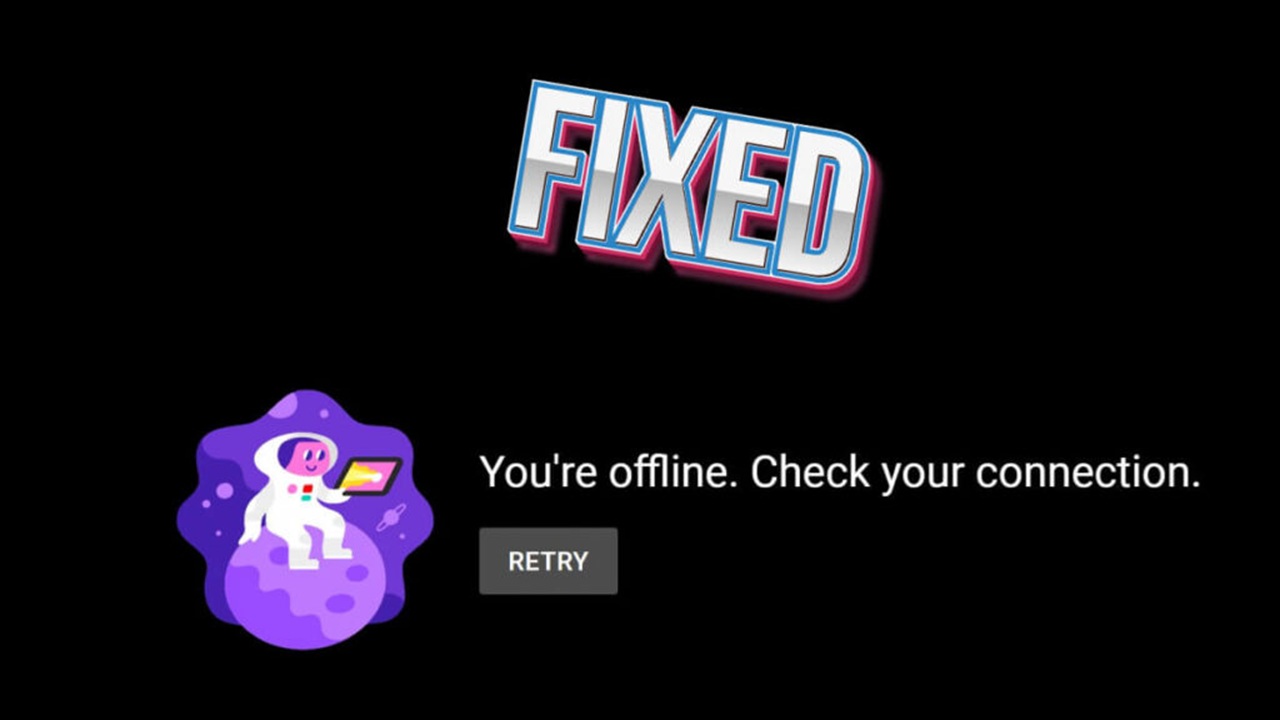
Few things are more frustrating than opening YouTube, tapping on a video, and seeing the message “No Connection.” Whether you are trying to watch a tutorial, stream music, or upload content, this issue can instantly disrupt your experience.
The good news is that most YouTube network errors are not serious and can be fixed within minutes. In many cases, the problem is not even YouTube itself but something small like your internet settings, app glitches, or device configuration.
This guide walks you through practical, real world solutions that work. No complicated tech knowledge needed. Just clear steps you can follow right away to get YouTube working again.
Why YouTube Shows “No Connection”
Before jumping into fixes, it helps to understand what might be causing the problem. YouTube relies heavily on a stable internet connection and smooth communication between your device and Google servers.
When something interrupts this communication, you see errors like:
No connection
You are offline
Check your network
Something went wrong
Here are the most common reasons behind it:
Weak or unstable internet
Temporary app glitches
Outdated YouTube app
Corrupted cache data
VPN or proxy interference
Incorrect date and time settings
Router or DNS issues
Server side problems from YouTube
Understanding these causes makes it easier to fix the issue quickly instead of guessing.
First Check Your Internet Connection
This might sound obvious, but it is the most common reason.
Start by opening another app or website. If nothing loads, the issue is your internet, not YouTube.
Try these quick steps:
Turn WiFi off and on again
Switch between mobile data and WiFi
Move closer to your router
Restart your device
If your connection feels slow, try loading a simple website. If it takes too long, your network is likely unstable.
Sometimes, even if your internet is working, it may not be strong enough to stream videos smoothly.
Restart the YouTube App
Apps can freeze or behave strangely after running for a long time. Restarting YouTube can fix temporary bugs.
On mobile devices:
Close the app completely from recent apps
Wait a few seconds
Open YouTube again
On desktop:
Close the browser tab
Refresh or reopen YouTube
This simple step often solves random connection errors instantly.
Clear YouTube Cache and Data
Over time, the YouTube app stores temporary data to load faster. But sometimes, this data becomes corrupted and causes errors.
Clearing cache can fix the issue without deleting your account.
On Android:
Go to Settings
Open Apps
Select YouTube
Tap Storage
Clear Cache
If the problem continues, you can also clear data, but this will reset app settings.
On browsers:
Clear browsing data including cached images and files
This step alone fixes a large number of YouTube connection issues.
Update the YouTube App
Using an outdated version of YouTube can lead to compatibility problems.
Open your app store and check for updates. If an update is available, install it immediately.
Updates often include bug fixes and performance improvements that resolve connection errors.
Check Date and Time Settings
This is something many people overlook.
If your device has the wrong date or time, YouTube may fail to connect properly due to security checks.
Set your date and time to automatic:
Go to Settings
Find Date and Time
Enable automatic date and time
Once done, restart your device and try again.
Disable VPN or Proxy
VPN services can sometimes block or slow down YouTube connections.
If you are using a VPN, try turning it off temporarily.
Similarly, if you have configured a proxy, disable it and check if YouTube starts working again.
In many cases, YouTube works instantly after disabling these services.
Restart Your Router
If multiple devices are facing the same issue, your router may be the problem.
Restarting your router refreshes your network connection.
Steps:
Turn off the router
Wait for about one minute
Turn it back on
Wait for the connection to stabilize
This simple reset often fixes hidden network glitches.
Try a Different Network
If nothing works, switch to another network.
Use mobile data instead of WiFi or connect to a different WiFi network.
If YouTube works on another network, the issue is clearly with your original connection.
Check YouTube Server Status
Sometimes the problem is not on your side at all.
YouTube servers can go down due to maintenance or unexpected outages.
You can check this by visiting websites that track service status or by searching online for “YouTube down today.”
If servers are down, all you can do is wait until the issue is resolved.
Fix YouTube on Desktop Browsers
If you are using YouTube on a computer, the problem may be related to your browser.
Try these fixes:
Refresh the page
Clear browser cache
Disable extensions one by one
Update your browser
Try a different browser
Extensions like ad blockers can sometimes interfere with YouTube playback.
Reset Network Settings
If the problem persists, resetting network settings can help.
This will remove saved WiFi networks and reset all network configurations.
On mobile devices:
Go to Settings
Find Reset options
Select Reset Network Settings
After resetting, reconnect to your network and test YouTube again.
Check Background Data Restrictions
Some devices limit background data usage to save internet.
If YouTube is restricted, it may fail to connect.
Go to app settings and make sure YouTube has permission to use data freely.
Free Up Storage Space
Low storage can also affect app performance.
If your device is almost full, apps may not function properly.
Delete unused apps, photos, or files to free up space.
Then restart your device and try YouTube again.
Reinstall the YouTube App
If nothing else works, uninstall and reinstall the app.
This removes all corrupted files and installs a fresh version.
Steps:
Uninstall YouTube
Restart your device
Install it again from the app store
This is one of the most effective solutions for persistent errors.
Common Mistakes People Make
Many users waste time trying complicated fixes when the solution is simple.
Here are some mistakes to avoid:
Ignoring weak internet signals
Not restarting the device
Skipping app updates
Using too many background apps
Forgetting about VPN interference
Keeping things simple often solves the problem faster.
How to Prevent YouTube Connection Errors
Once your issue is fixed, you can take a few steps to avoid it in the future.
Keep your app updated
Use a stable internet connection
Restart your device occasionally
Avoid unnecessary VPN usage
Clear cache regularly
These habits keep your YouTube experience smooth and uninterrupted.
When to Contact Support
If you have tried everything and YouTube still shows no connection, it might be time to seek help.
Contact your internet provider if your network is unstable
Reach out to YouTube support for account related issues
Check device service if hardware problems are suspected
While rare, some issues require expert assistance.
Final Th oughts
The “No Connection” error on YouTube can feel annoying, especially when you just want to watch something quickly. But in most cases, the fix is simple and takes only a few minutes.
Start with basic checks like your internet and app restart, then move to advanced steps like clearing cache or resetting network settings.
Technology is not always perfect, but with the right approach, you can solve these small problems without stress. The next time YouTube refuses to load, you will know exactly what to do and get back to watching without delay.