






Modern computers are powerful, but most Windows 11 setups feel anything but fast or focused. Notifications pop up constantly, apps run in the background without permission, and the desktop slowly turns into a cluttered workspace. Over time, this not only slows your system but also affects how you work and think.
A minimalist Windows 11 setup is not just about aesthetics. It is about removing friction. When your system is clean, fast, and distraction free, you naturally get more done with less effort. Whether you are a student, developer, content creator, or remote worker, this approach can completely change how you interact with your PC.
This guide walks you through a practical, step by step process to transform Windows 11 into a clean, high performance workspace designed for speed and focus.
Why Minimalism Matters in Windows 11
Most users never question the default setup. Windows 11 comes loaded with features, apps, widgets, and background services that try to do everything at once. The result is a system that feels busy even when you are doing nothing.
A minimalist setup focuses on three things
- Speed by reducing background load
- Clarity by removing visual clutter
- Focus by limiting distractions
You will notice the difference immediately. Apps launch faster. Your desktop feels calmer. And you spend less time managing your computer and more time actually using it.
Step 1 Remove Unnecessary Apps and Bloatware
The first step is cleaning what you do not need. Most Windows 11 systems come with preinstalled apps that you may never use.
Open Settings then go to Apps and Installed Apps. Scroll through the list and uninstall anything that is not essential. This often includes games, trial software, and duplicate utilities.
Focus on keeping only what you actively use. For example
- Your main browser
- Work related tools
- Essential drivers and utilities
Everything else is just taking up space and resources.
For advanced users, tools like PowerShell can remove deeper system apps, but even basic cleanup makes a noticeable difference.
Step 2 Clean Up Startup Programs
Many apps start automatically when your system boots. This slows down startup time and keeps unnecessary processes running in the background.
Press Ctrl Shift Esc to open Task Manager and go to the Startup tab. Disable apps that do not need to run on startup.
Common examples to disable
- Chat apps you do not use daily
- Game launchers
- Auto update tools
Keep startup lean. Ideally, only security software and essential services should run at boot.
Step 3 Simplify the Desktop
A cluttered desktop creates mental noise. Even if you think you are ignoring it, your brain still processes everything it sees.
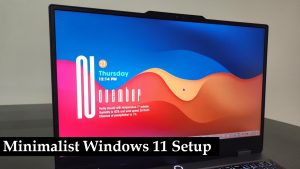
Start by removing all unnecessary icons. Keep only a few shortcuts if needed. Better yet, use the taskbar or Start menu for quick access.
Consider using a plain background or a soft gradient. Avoid busy wallpapers that compete for attention.
Create a simple folder structure for files instead of saving everything on the desktop. This small change can make your workspace feel instantly calmer.
Step 4 Optimize the Taskbar and Start Menu
Windows 11 centers the taskbar icons by default, which looks modern but may not be the most efficient layout for everyone.
Right click the taskbar, go to Taskbar Settings, and customize it
- Remove Widgets if you do not use them
- Turn off Chat or Teams integration if unnecessary
- Keep only essential icons visible
Open the Start menu and unpin everything you do not need. Aim for a clean grid of only your most used apps.
A good rule is simple. If you do not open it at least once a week, it should not be pinned.
Step 5 Disable Unnecessary Notifications
Notifications are one of the biggest sources of distraction. Windows 11 allows apps to send alerts at any time, even when you are working.
Go to Settings then System and Notifications. Turn off notifications for non essential apps.
You can also enable Focus Assist to silence notifications during work sessions. Set it to priority only or alarms only depending on your needs.
This creates a distraction free environment where you stay in control of your attention.
Step 6 Adjust Visual Effects for Performance
Windows 11 includes animations and visual effects that look good but can slow down older or mid range systems.
Search for Performance Options in the Start menu and open it. Choose Adjust for best performance or manually disable effects like
- Animations when opening windows
- Fade effects
- Shadows
The system will feel more responsive, especially when switching between apps.
Step 7 Use Lightweight Apps
Heavy software can slow down even powerful machines. Whenever possible, choose lightweight alternatives.
For example
- Use a simple text editor instead of a full IDE for quick notes
- Choose a fast browser with fewer extensions
- Use web apps instead of installing multiple programs
The goal is not to limit functionality but to avoid unnecessary overhead.
Step 8 Organize Files with a Minimal System
File clutter is just as harmful as visual clutter. Create a simple folder structure that is easy to maintain.
A practical setup could include
- Work
- Personal
- Downloads
- Archive
Regularly clean the Downloads folder and move files to their proper location. This prevents buildup over time.
Search works well in Windows 11, but a clean structure saves time and reduces frustration.
Step 9 Keep the System Updated but Controlled
Updates are important for security and performance, but forced updates can interrupt your workflow.
Go to Windows Update settings and adjust active hours so updates do not happen during your work time.
Check for updates manually once a week instead of letting them run unpredictably.
This keeps your system secure without breaking your focus.
Step 10 Maintain Your Setup Regularly
A minimalist setup is not a one time task. It requires occasional maintenance.
Every few weeks
- Review installed apps and remove what you no longer use
- Check startup programs again
- Clean temporary files using Storage settings
- Organize files and folders
These small habits prevent clutter from coming back.
Real World Benefits You Will Notice
After setting up a minimalist Windows 11 environment, the improvements are not just technical. They are practical.
Your PC will boot faster and feel more responsive. You will spend less time searching for files or closing unwanted apps. Most importantly, your attention will stay on what actually matters.
Many users report that a clean digital environment reduces stress and improves productivity. It is similar to working at a clean desk compared to a messy one.
Common Mistakes to Avoid
Some users go too far and remove essential features or services. Minimalism is about balance, not restriction.
Avoid
- Disabling security features like Windows Defender
- Removing drivers or system critical apps
- Installing too many optimization tools that do more harm than good
Stick to simple, reliable changes that you understand.
Final Thoughts
A minimalist Windows 11 setup is one of the simplest ways to improve both performance and focus without upgrading hardware. By removing distractions, limiting background activity, and organizing your workspace, you create an environment that supports deep work.
The best part is that you do not need technical expertise to get started. Small changes, applied consistently, lead to a system that feels faster, cleaner, and easier to use every day.
If your current setup feels slow or overwhelming, this approach is worth trying. Once you experience a clutter free Windows 12 Iso Download environment, it is hard to go back.