








Battery life is one of those things you only notice when it starts disappearing faster than expected. If your laptop running Windows 11 is losing power quickly, you are not alone. Many users have experienced sudden battery drain after updates, new apps, or even without making any obvious changes.
The good news is that most battery drain problems are not permanent. In many cases, they come from a combination of background activity, system settings, or small software conflicts. Once you understand what is happening behind the scenes, fixing the issue becomes much easier.
This guide walks you through the real causes of Windows 11 battery drain and the practical steps you can take to improve battery performance in everyday use.
Why Windows 11 Battery Drains Faster Than Expected
Windows 11 introduced a modern interface and smarter features, but it also brought more background processes and visual elements that can affect battery life. If your device feels like it cannot last through the day anymore, the problem often comes down to a few common factors.
Background Apps Running Constantly
Many apps continue running even when you are not using them. These apps sync data, check for updates, or stay active in memory. Over time, this constant activity eats into your battery.
High Screen Brightness and Display Settings
Your display is one of the biggest power consumers. If brightness is set too high or features like dynamic refresh rate are enabled, your battery drains faster than usual.
Windows Updates and Indexing
After updates, Windows may run indexing tasks, file scans, and optimization processes. These tasks are temporary but can significantly impact battery life while they run.
Faulty Drivers or Outdated Software
Drivers control how hardware interacts with your system. If they are outdated or not optimized for Windows 11, they can cause inefficient power usage.
Startup Programs
Some applications start automatically when you turn on your laptop. Even if you never open them, they continue running in the background and consume power.
Signs That Your Battery Problem Needs Attention
It is normal for battery performance to change slightly over time. However, certain signs indicate a deeper issue.
If your laptop drops from full charge to low battery in just a few hours, heats up even during light tasks, or shows inconsistent battery percentage, it is worth investigating further.
Another common sign is when your system reports high battery usage from apps you rarely use. This usually points to background activity or a misbehaving application.
Proven Fixes to Improve Windows 11 Battery Life
Instead of trying random solutions, it is better to follow a structured approach. These fixes are practical and work for most users.
Adjust Power Mode Settings
Windows 12 Iso File includes built in power modes that control how your system uses energy.
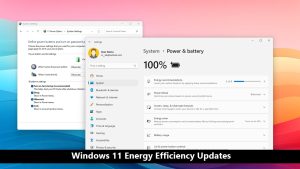
Go to Settings, then System, then Power and battery. Choose the Best power efficiency option if you want longer battery life. This reduces performance slightly but significantly improves battery usage.
For daily tasks like browsing or writing, this setting works well without noticeable slowdowns.
Reduce Background App Activity
Limiting background activity can make a big difference.
Open Settings and go to Apps. Select Installed apps and check which ones you rarely use. For each app, open Advanced options and restrict background activity if possible.
You can also disable apps from running in the background entirely if they are not essential.
Lower Screen Brightness
It sounds simple, but brightness often goes unnoticed.
Reduce brightness to a comfortable level instead of keeping it at maximum. You can also enable adaptive brightness if your device supports it. This automatically adjusts brightness based on your surroundings.
Turn Off Unnecessary Features
Windows 11 includes several features that look good but consume power.
Consider turning off animations, transparency effects, and widgets if you do not use them regularly. These features run in the background and use system resources.
Go to Settings, then Personalization, then Colors and disable transparency effects.
Disable Startup Programs
Startup programs slow down your system and drain battery.
Press Ctrl Shift Esc to open Task Manager. Go to the Startup tab and disable apps that you do not need immediately after startup.
This not only improves battery life but also makes your system boot faster.
Update Drivers and Windows
Keeping your system updated ensures better performance and efficiency.
Go to Windows Update and check for updates regularly. Also update drivers, especially graphics and chipset drivers, since they directly affect power usage.
Use Battery Saver Mode
Battery Saver is designed to extend battery life when you need it most.
You can enable it manually from the taskbar or set it to turn on automatically when your battery reaches a certain level. This mode limits background activity and reduces system performance slightly to save power.
Check Battery Usage Report
Windows provides a detailed battery usage report that can help identify the real problem.
Open Command Prompt and run a battery report command. This generates a report showing which apps consume the most power.
Reviewing this data helps you find apps that are draining your battery without your knowledge.
Advanced Fixes for Persistent Battery Drain
If basic fixes do not solve the problem, you may need to take a deeper approach.
Reset Power Settings
Sometimes, custom settings can cause unexpected behavior.
Resetting power settings to default can fix hidden issues. This restores balanced performance without unnecessary power consumption.
Scan for Malware
Malicious software can run in the background and use system resources continuously.
Run a full system scan using your antivirus tool. Removing unwanted programs often improves both performance and battery life.
Check for Hardware Issues
If your battery drains quickly even after trying all software fixes, the problem may be hardware related.
Laptop batteries lose capacity over time. If your device is older, the battery may simply need replacement.
Limit Browser Usage
Modern browsers are powerful but resource heavy.
If you keep many tabs open, your battery will drain faster. Try closing unused tabs or switching to a lighter browser when working on battery power.
Everyday Habits That Improve Battery Life
Beyond technical fixes, small habits can make a noticeable difference.
Avoid keeping your laptop plugged in all the time. Letting the battery cycle naturally helps maintain its health. Also avoid extreme temperatures, as heat can damage battery capacity over time.
Using sleep mode instead of shutting down repeatedly can also help reduce unnecessary power consumption during startup processes.
When to Consider Replacing Your Battery
If your battery drains extremely fast and does not improve after all fixes, it might be time to replace it.
Most laptop batteries are designed to last a few years. After that, their capacity drops, and no amount of optimization can fully restore performance.
You can check battery health through system reports or manufacturer tools. If capacity is significantly lower than original, replacement is the best solution.
Final Thoughts
Battery drain issues in Windows 11 can feel frustrating, especially when they appear suddenly. But in most cases, the cause is not complicated. It is usually a mix of background apps, settings, and system behavior that slowly adds up.
By making a few smart adjustments, you can regain control over your battery life and use your laptop more efficiently throughout the day.
Instead of relying on a single fix, focus on a combination of changes. Reduce unnecessary activity, keep your system updated, and pay attention to how your device behaves over time.
With the right approach, you can turn a fast draining battery into one that lasts long enough for your daily needs without constant charging interruptions.