





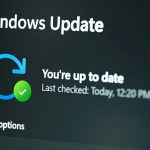



Windows 11 has changed the way Microsoft delivers updates. Instead of waiting for one big yearly upgrade, users now receive smaller feature drops known as Moment updates. These updates quietly introduce new tools, refine existing features, and improve performance without forcing you into a full system overhaul.
If you have ever opened your laptop and noticed something new without installing a major update, chances are you experienced a Moment update. These changes are subtle but important. They shape how Windows evolves in real time.
This guide breaks down everything you need to know about Windows 11 Moment updates. You will learn what they are, what features they bring, how to install them correctly, and how to stay safe while updating your system.
What Are Windows 11 Moment Updates

Moment updates are smaller feature updates released throughout the year. Microsoft uses them to deliver improvements faster instead of bundling everything into one large release.
Think of them as mini upgrades. They are delivered through regular Windows Update, so you do not need to download a separate installer or perform a complete system reset.
These updates focus on three main areas
New features
User experience improvements
Security and stability enhancements
Unlike traditional updates, Moment updates can arrive silently in the background. Sometimes they activate only after a quick restart.
Why Microsoft Introduced Moment Updates
Microsoft shifted to Moment updates to make Windows more flexible and responsive. In the past, users had to wait months or even a year for meaningful improvements.
Now, features roll out gradually. This approach has several advantages
Faster access to new tools
Reduced risk compared to large updates
Better feedback from users
Continuous improvement without disruption
From a user perspective, this means your system keeps getting better over time without major interruptions.
Key Features Introduced Through Moment Updates
Each Moment update brings a mix of small and noticeable changes. Some features improve productivity, while others enhance everyday usability.
Improved Search Experience
Windows search has become smarter and faster. Moment updates have refined how results appear, making it easier to find apps, files, and settings.
Search now integrates better with web results and system suggestions, saving time during daily tasks.
AI Powered Tools
Microsoft has been adding more AI features into Windows 11. Some Moment updates include enhancements like smarter recommendations, improved Copilot integration, and context aware suggestions.
These tools aim to simplify tasks such as writing, searching, and organizing your workflow.
Taskbar Enhancements
The taskbar has received multiple updates. Users now enjoy better customization options, improved system tray behavior, and smoother animations.
Small changes like these make a big difference in daily usage.
File Explorer Improvements
File Explorer has become more modern and responsive. Updates include better tab management, improved navigation, and cleaner design elements.
This makes handling files and folders more intuitive.
Accessibility Features
Microsoft continues to improve accessibility with each update. Features like voice access, live captions, and better screen reader support help users with different needs.
These updates show a strong focus on inclusivity.
Performance and Stability
Not every change is visible. Many Moment updates focus on improving system speed, reducing bugs, and enhancing battery efficiency.
Even if you do not notice them directly, these improvements make your system smoother and more reliable.
How to Check If You Have a Moment Update
You might already have a Moment update installed without realizing it. To check
Open Settings
Go to Windows Update
Click on Update history
Here you will see recent updates installed on your system. Feature updates delivered through Moment releases will appear in this list.
How to Install Windows 11 Moment Updates
Installing Moment updates is simple because they are part of the standard update system.
Step by Step Installation
Open Settings on your computer
Navigate to Windows Update
Click Check for updates
Download and install any available updates
Restart your system if required
Sometimes, features are included in updates but remain inactive until Windows 12 Iso enables them. This is normal and part of their gradual rollout strategy.
Tips to Ensure a Smooth Installation
While Moment updates are generally safe, taking a few precautions can help avoid issues.
Keep Your System Backed Up
Before installing updates, make sure your important files are backed up. You can use cloud storage or an external drive.
This protects your data in case something unexpected happens.
Check Storage Space
Ensure your device has enough free storage. Low space can cause update failures or slow installations.
Update Drivers
Outdated drivers can create compatibility issues. Updating them before installing Windows updates can prevent problems.
Use a Stable Internet Connection
A reliable connection ensures that updates download without interruptions.
Safety Tips for Windows 11 Updates
Security should always be a priority when updating your system. Here are practical safety tips to follow
Install Updates Only from Official Sources
Always use the built in Windows Update feature. Avoid downloading updates from unknown websites.
Keep Antivirus Enabled
Make sure your antivirus software is active before and after updates. This adds an extra layer of protection.
Avoid Interrupting Updates
Do not turn off your device during installation. Interruptions can corrupt system files.
Watch for Fake Update Alerts
Scammers sometimes create fake update notifications. If you see a suspicious message, ignore it and check updates manually through Settings.
Enable Automatic Updates
Automatic updates help you stay protected without needing to check manually.
Common Issues and How to Fix Them
Even though Moment updates are smaller, users may occasionally face issues. Here are some common problems and solutions
Update Not Showing
If you do not see a new update, it may not be rolled out to your device yet. Microsoft releases updates gradually.
Slow Installation
This can happen due to low storage or background processes. Closing unnecessary apps can help.
System Lag After Update
Sometimes the system needs time to optimize after installation. Restarting your device usually resolves this.
Feature Not Available
Some features are region specific or require additional settings to be enabled.
Are Moment Updates Safe
Yes, Moment updates are generally safe. In fact, they are often safer than large updates because they introduce changes gradually.
Microsoft tests these updates before releasing them and monitors feedback to fix issues quickly.
However, like any software update, there is always a small risk. Following safety tips and keeping backups ensures you are prepared.
How Moment Updates Affect Performance
Most users notice improved performance after updates. Faster boot times, smoother animations, and better battery life are common benefits.
In rare cases, performance may temporarily drop due to background optimization. This usually resolves within a few hours or after a restart.
Should You Install Moment Updates Immediately
It depends on your needs. If you enjoy trying new features, installing updates early is a good choice.
If you prefer stability, you can wait a few days to ensure there are no reported issues.
For most users, enabling automatic updates strikes the right balance between convenience and safety.
The Future of Windows Updates
Moment updates represent a shift toward continuous improvement. Instead of big surprises once a year, users get steady progress throughout the year.
This approach aligns with how modern software works. It keeps systems up to date, secure, and aligned with user needs.
As Microsoft continues to integrate AI and cloud features, Moment updates will likely become even more important.
Final Thoughts
Windows 11 Moment updates may seem small at first, but they play a big role in shaping your everyday experience. From subtle design improvements to powerful new tools, these updates keep your system modern and efficient.
The best part is how seamless the process has become. Updates happen in the background, features appear naturally, and your system evolves without major disruption.
By understanding how these updates work and following simple safety practices, you can make the most of every improvement Windows 11 offers.
Keeping your system updated is not just about new features. It is about staying secure, productive, and ready for whatever comes next.